In what might be my most stupid test yet, I got my Google Business Profile suspended.
I did this to test Google’s “Live video call” verification option.
Over the years, I’ve helped optimise 100s of GBPs, and in this time I’ve seen Google become notably strict, particularly in 2024-2025 with Google Business Profile verifications, and many struggle with the video verification process.
For the average business owner:
- It can be hard to know exactly what to capture
- You can fail the video submission easily
- It’s likely you got to this point in the first place and don’t know why
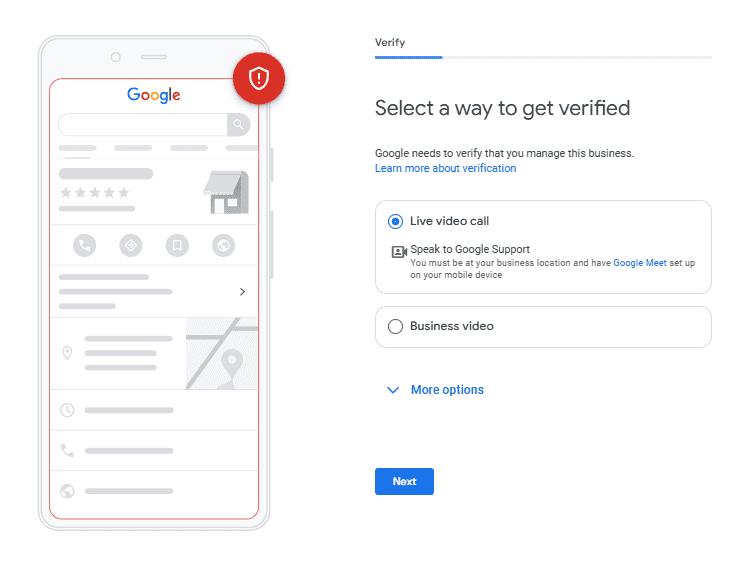
Fortunately, there is another verification option for some businesses instead of the dreaded “Business video” submission. If Google offers it for your profile, you can use a “Live video call”:
Before You Make Business Profile Changes
Firstly, if you need to update your business details on Google, be warned:
- Simply changing your address after a move will mean verifying your listing again. Many business owners do this as it seems like such a quick and easy thing to do. Don’t skip the verification step.
- If your brand name is changing, Google may ask you to verify your listing again too.
If you are moving or rebranding, plan your GBP changes alongside your other updates. Update your business information on:
- your website
- your major citations
- your social channels
Keep these details consistent with your GBP, and update them when your move or rebrand takes place. If your profile is suspended, check it follows Google’s guidelines and use Google’s suspension appeal process.
Prepping for a Live Video Call
As part of the video submission or live call process, Google will require offline, in-person validations via a video. These are:
- You need a mobile phone with access to the Google Business listing. For a live call, another device that supports video calls can also be used.
- I also recommend having your laptop/computer open and logged in.
- “Permanent fixtures”. Yes, if you display your business address on Google, you need a real sign with your business name which can be seen to be fixed into place. This can be a sign nailed into a wall/fence. For me, I quite literally had to “show the nails”.
- Be at your current location. Duh… but you need to show a street view.
- “Proof of management”. Keys to an office, opening a cash register etc.
- If you note “My business has a physical location but travels to work at customers’ locations” in the verification process, you may be asked to show your vehicle or work equipment. What you need to show depends on your business; the number plate, speedometer and starting the car are not a checklist every business has to complete.
- A bill or an invoice with your business name and address on it. Keep any sensitive information out of view.
- and patience….
If you visit customers but don’t serve them at your business address, hide your address and set your service areas.
How to Get a Live Video Call Option
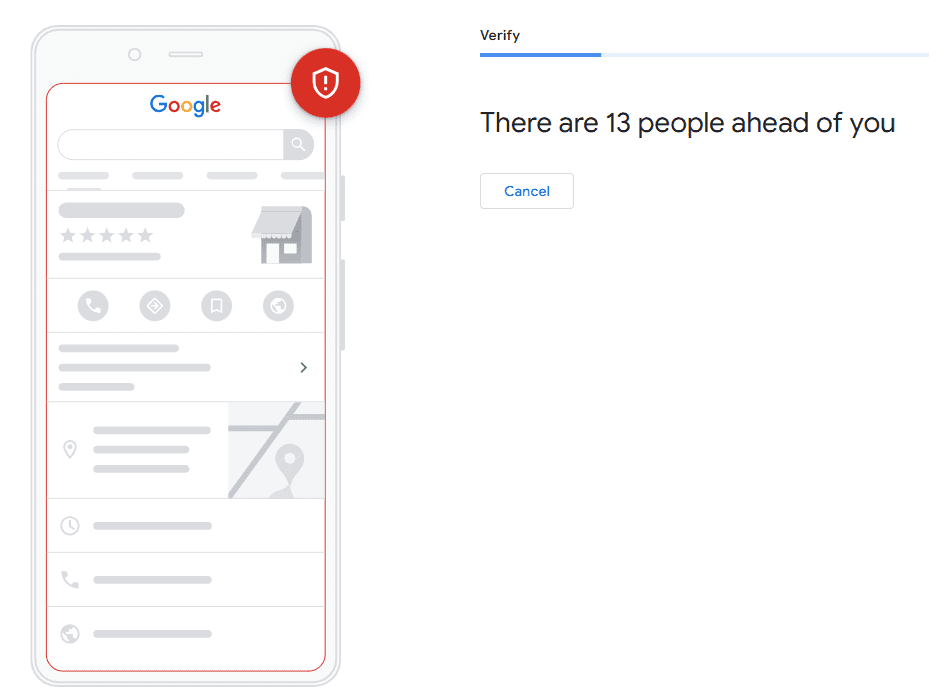
Firstly note that this option may not be available for all businesses. But you should at least try the options available to you. If it does become available, it will only be within your respective business opening hours.
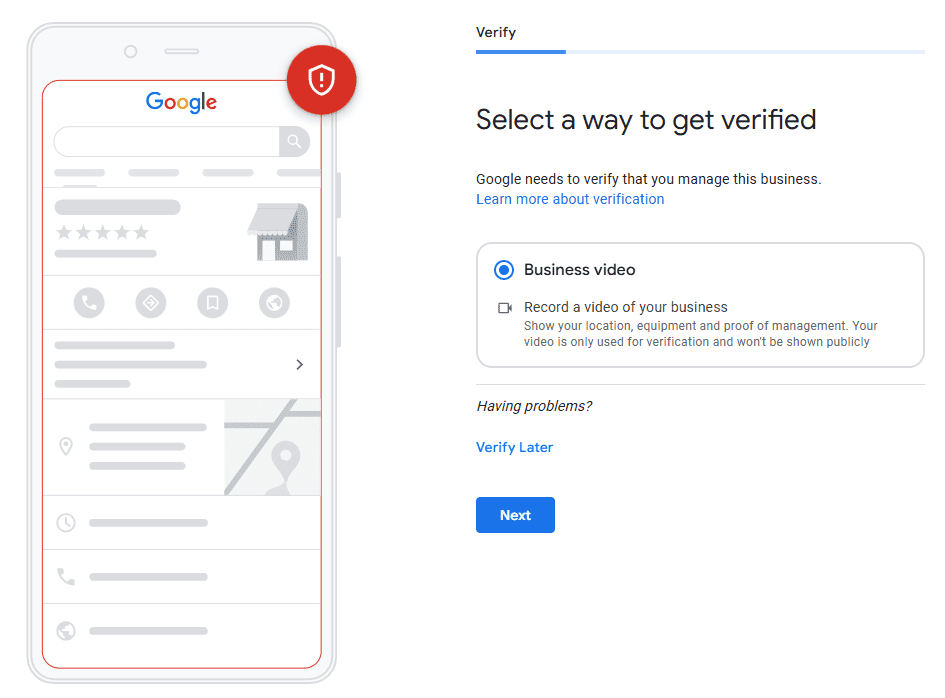
This live video option may not be there on the verification tab. You may see just “Business video”:
Here are the steps to follow:
1. Contact Support
If you’re still unable to verify using the options available, you can ask for help by going through Google’s support. You can get to Google’s support option here:
https://support.google.com/business/gethelp
From here, submit your request for help with verification. You can ask whether a live video verification call is available for your profile. Quickly detail that you need support with the video verification process:
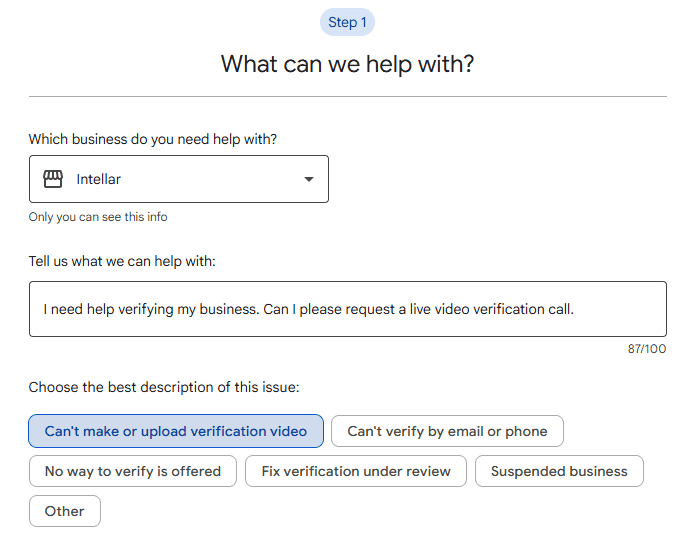
Support may then come back to you via email. A request doesn’t guarantee the live call option will become available. If it does, here are the next steps:
2. Start a text chat
- Go to your Business Profile.
- Tap Get verified > Live video call > Next.
- Select your language.
- To start a text chat with the next available support representative, tap Start call.
3. Show your business through video call with a mobile device
- When a representative is available, they’ll help you join a video call.
- To show your business location and ownership, use the camera on your device.
This is pretty much a facetime chat with a Google Representative. Walk around following their instructions.
During the live call, you may be asked to do the following things, depending on your business:
- Show a street view and film your “permanent fixture” if you display a business address.
- Walk to and unlock your office.
- Operate office equipment, such as a computer or cash register.
- Show details of a utility bill with your business name and address on it. Keep any sensitive information out of view.
- Show your vehicle or work equipment if you selected you “visit customers” in the verification support steps.
- Run through any required updates to your GBP on your computer if the Google agent asks you to. These might include:
- Set your service area to the suburbs, cities or postcodes you actually serve. You can add more later, so don’t stress here.
- Change/add business categories.
- Add more business attributes.
Verification time
Google notes to allow up to “5 working days” to be verified. Some reviews take longer.
When your business is verified, you will be notified via email.
If you need to add other managers to your listing, you can now do this.
Next steps
Now that you’re verified, it’s time to optimise your Google Business profile to start climbing those local ranks!
If you want this entire process done for you, view Intellar’s local SEO services, or book a quick chat with a SEO consultant here.